
1. Type the following in the address bar:
www.office.com
2. Sign in with your @schools.vic.edu.au email and password.
3. Click on "Apps" on the left hand side and then click on "Install apps" on the top right corner.
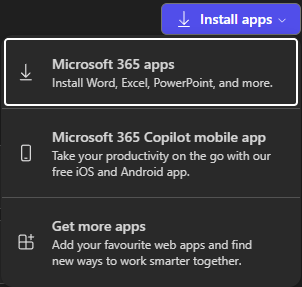
4. on the next page, click on "Install Office"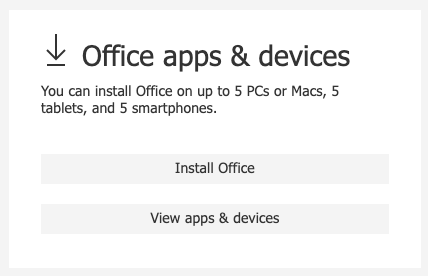
5. Once downloaded double click to run setup.

*This may take up to 15 - 45 minutes*
When the installer is complete, you will see all the programs appearing in the start menu.
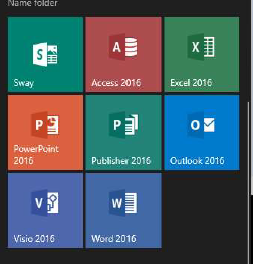
6. Open up one of the programs (Word, Excel, PowerPoint etc..).
If it does not auto popup asking you to sign in click on “Sign in on the top right corner”

7. Sign in using your @schools.vic.edu.au email. Click “Next”
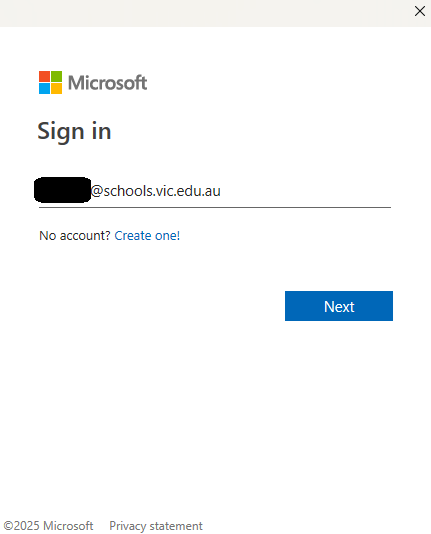
8. Enter in your school password and click “Sign in”
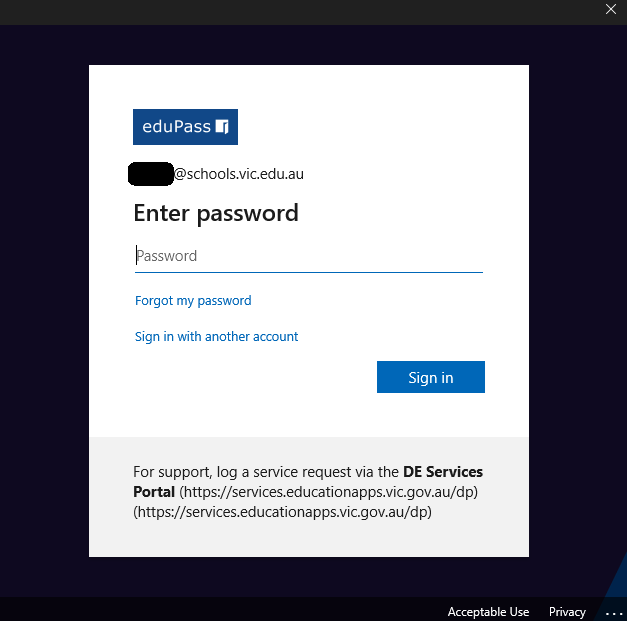
Microsoft Office will now be activated your duration at this school.