
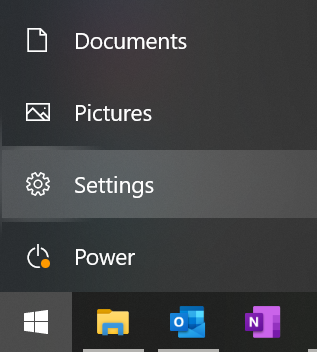
1. Open the Windows Start Menu.

2. Then select Settings.
3. Next, click Update & Security
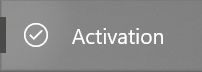
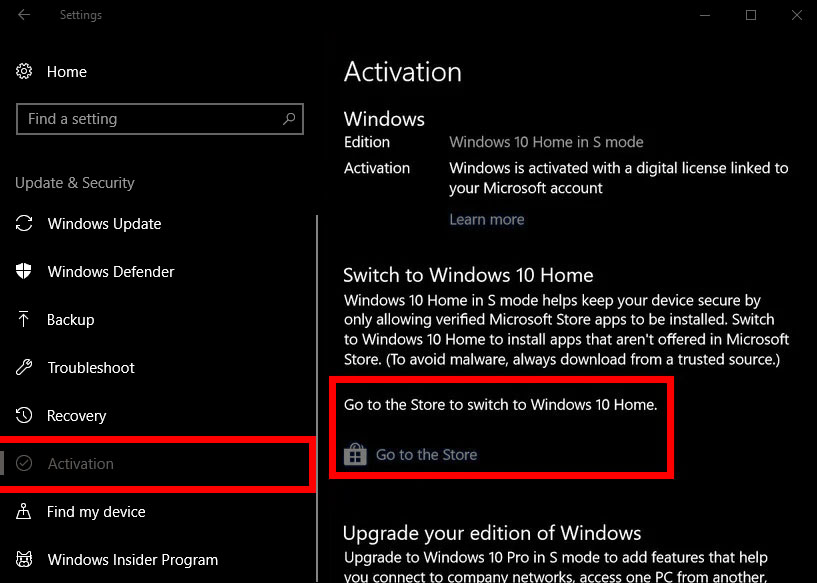
4. Then select Activation. You can find this in the left sidebar of the Settings window.
5. Next, click Go to the Store. You’ll see this next to a shopping bag icon with the Windows logo. Clicking on it will open up a new window in the Microsoft Store that says Switch out of S Mode.
6. Then click Get. This will be a blue button located just below the description.
7. Finally, click Install and wait for the process to finish. Once finished, you’ll see a pop-up box that says, “You’re all set! You have switched out of S mode and can now install apps from outside the Store.”