
To Set up the printers
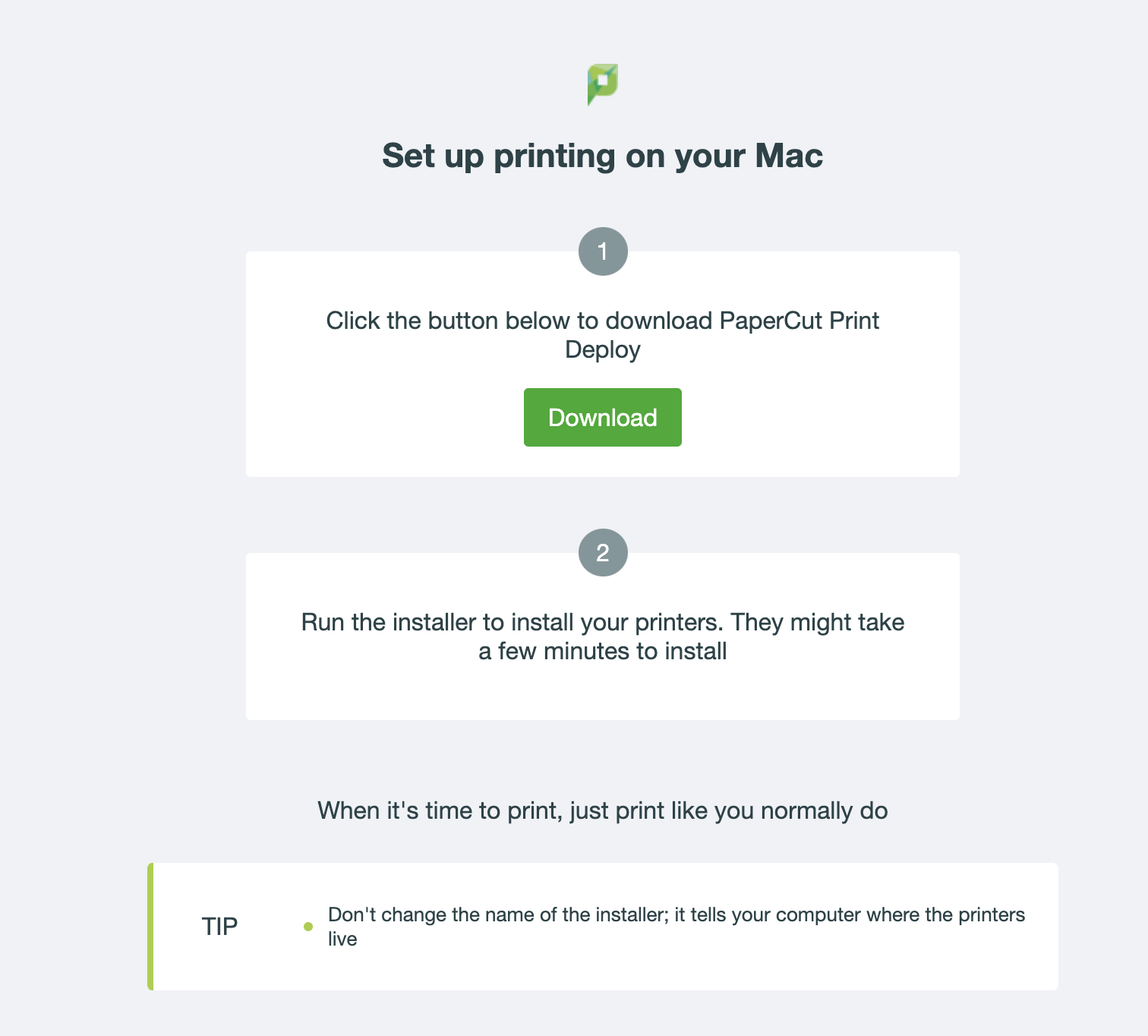
Click on the following link below:
Download Print DeployOn the Page, Click the green “Download” button.
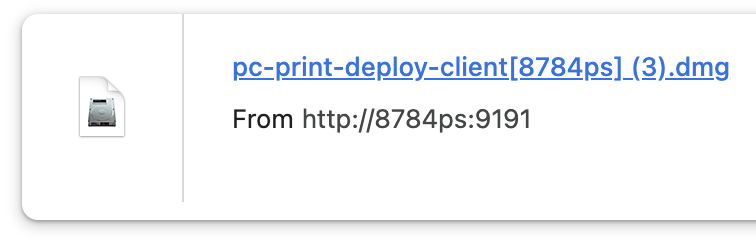
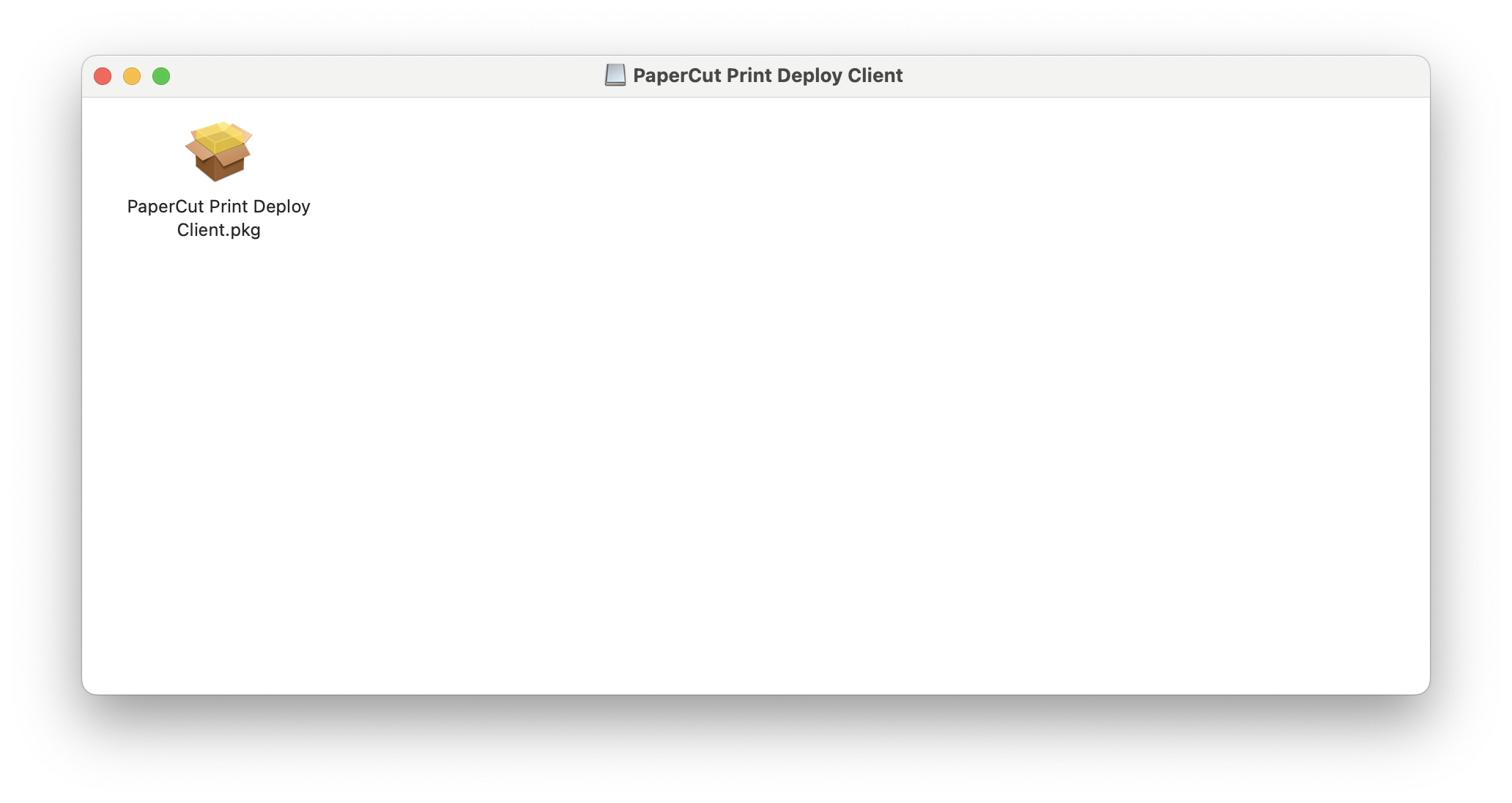
Open the downloaded .dmg file, double click on the .pkg file within to open the installer.
Follow though the installer steps, hit continue twice.
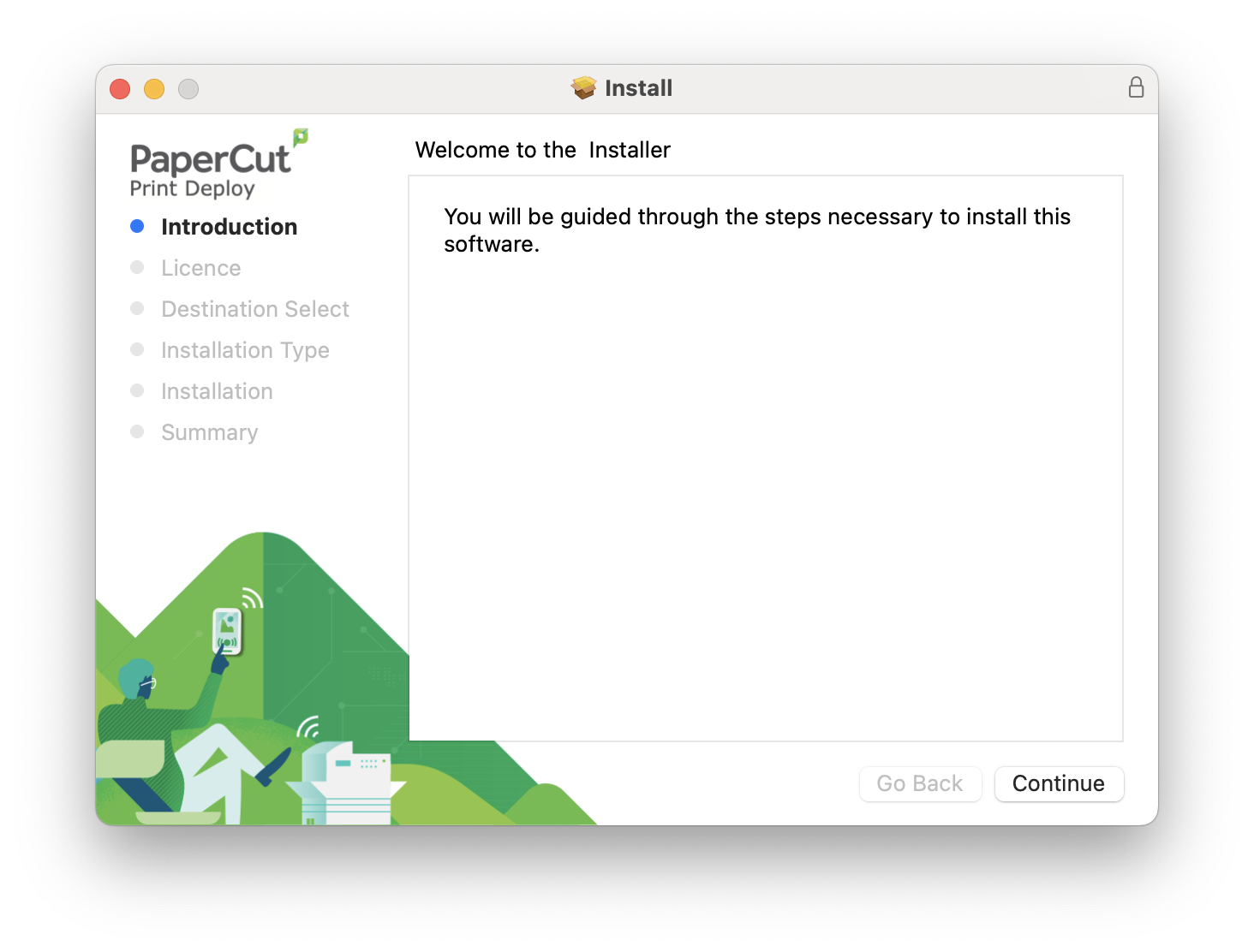
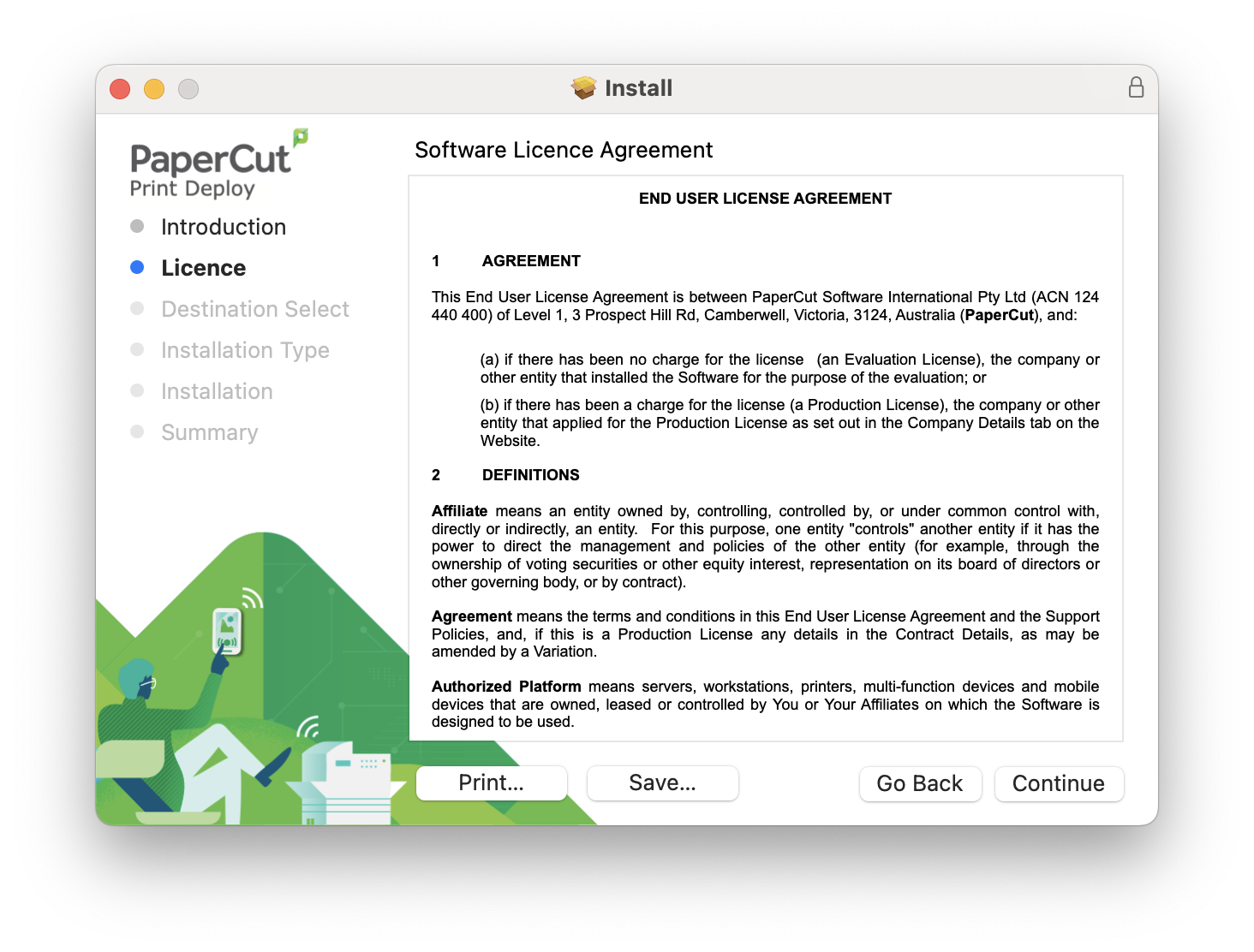
hit agree to the terms and services; (when prompted for password/touch ID, enter your mac's details in), hit "accept" to everything.
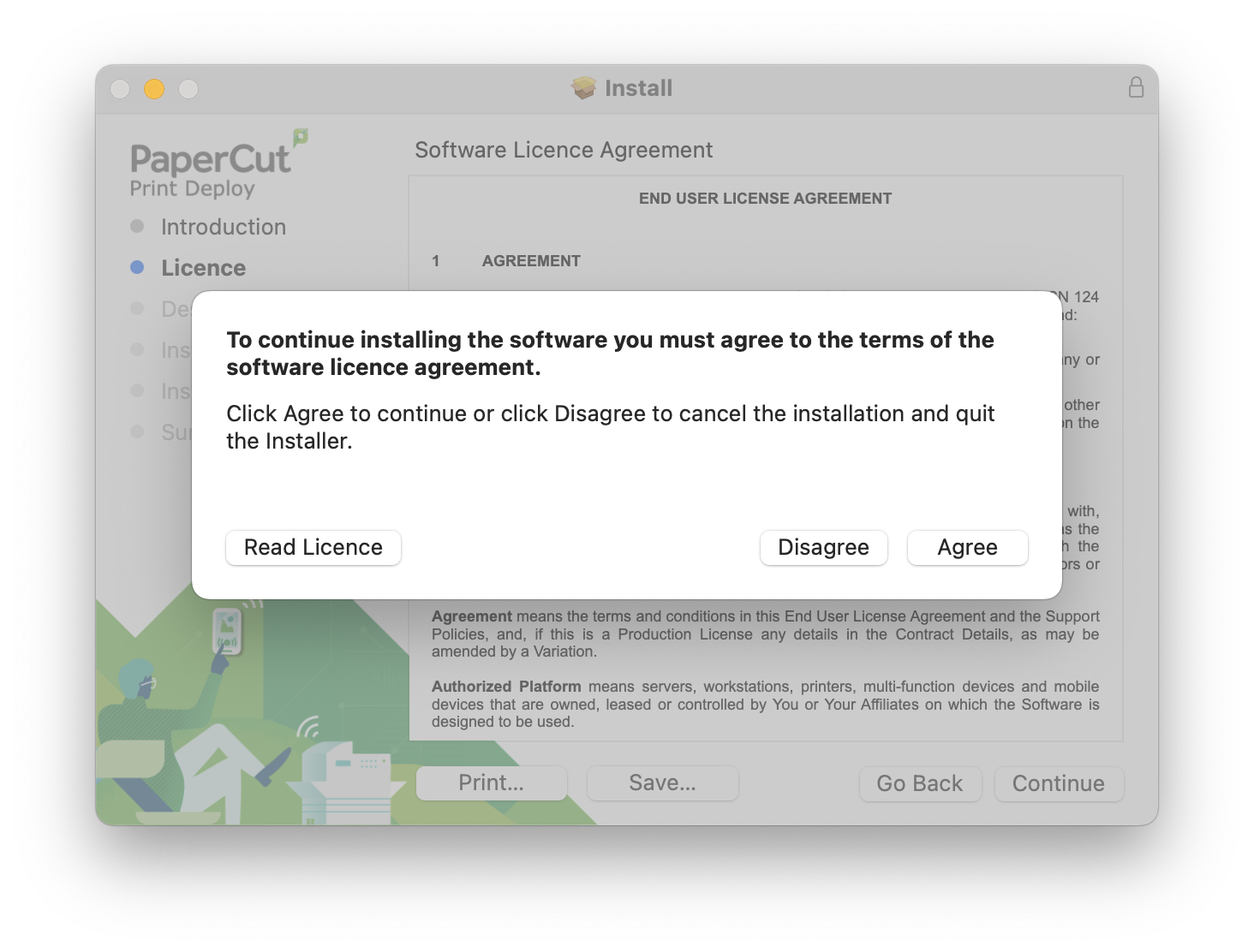
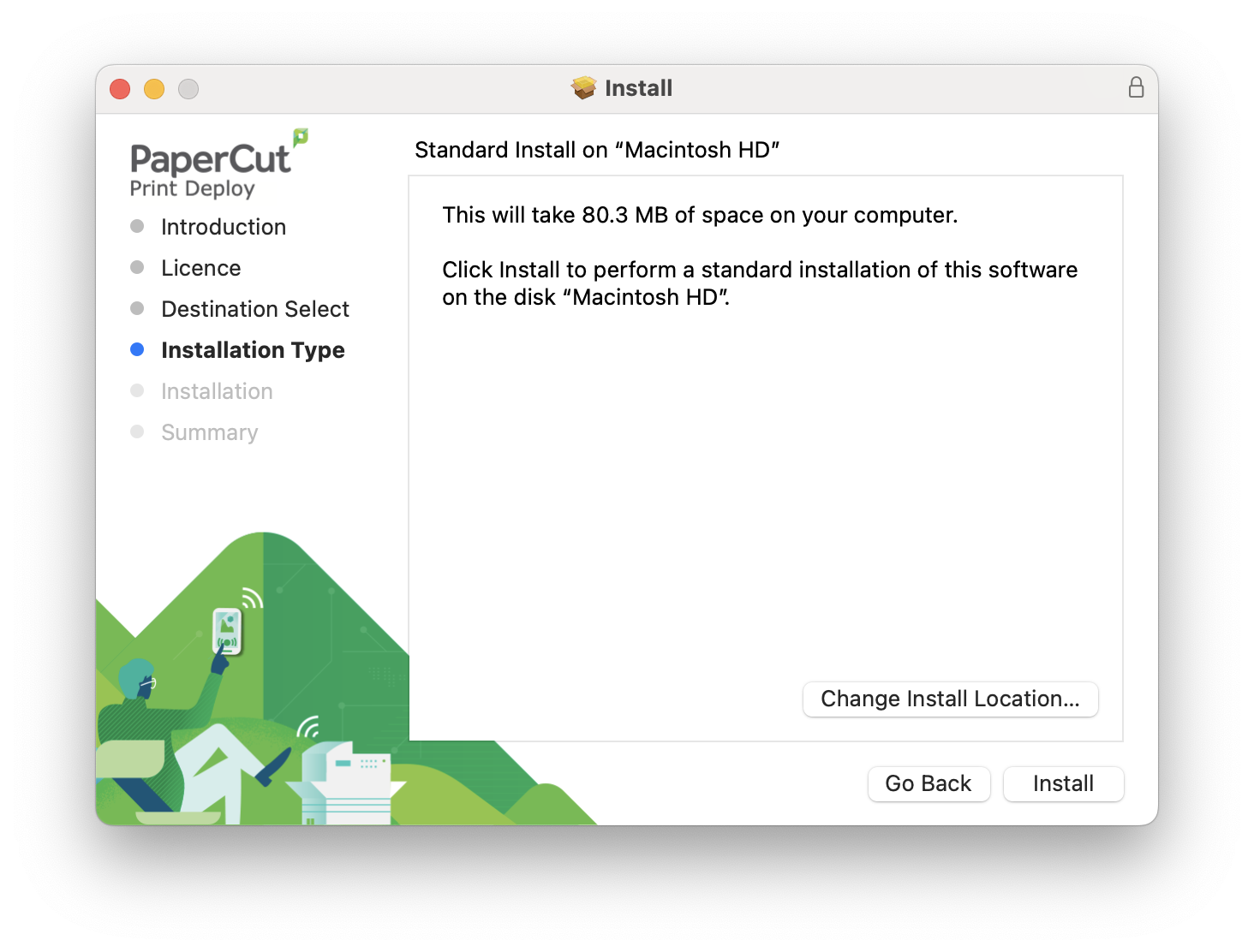
Make sure you have enough storage space free, click on “install”.
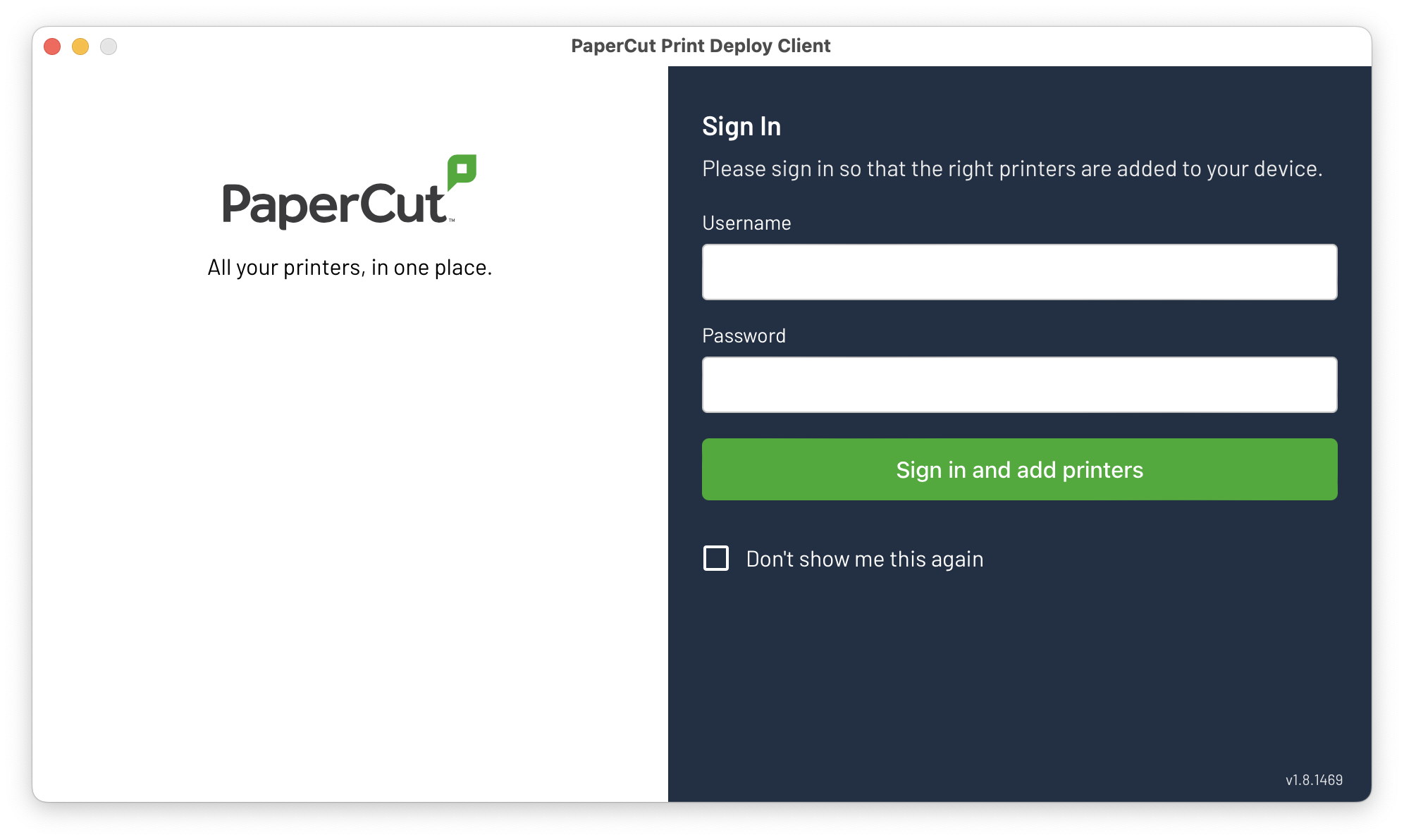
When prompted with a login screen in a new window, enter in your Compass username and Password
The printers should be installed automatically upon entering the next screen.
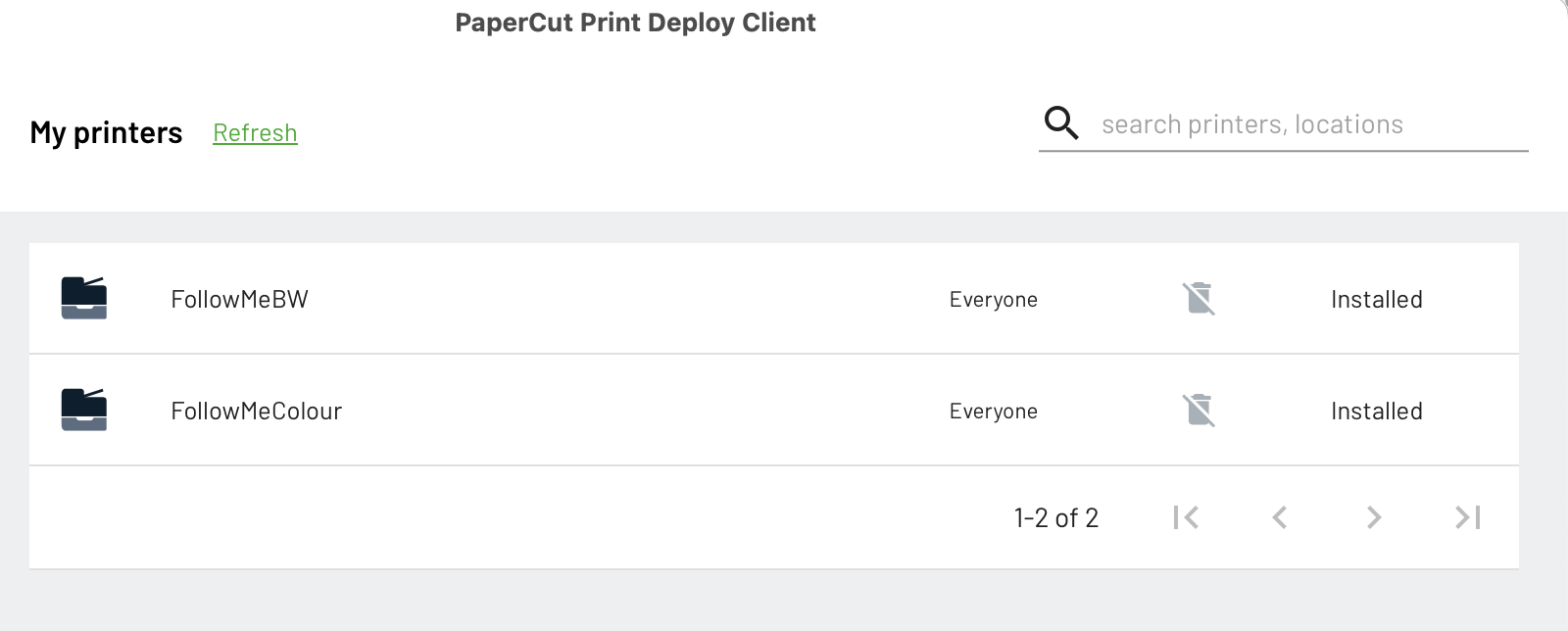
Click Finish, you have the printers on your Mac.
When you make your first print job with your Mac, you will get a "Hold for Authentication" error or a dialogue box requiring a username and password.
"Hold for Authentication"
- on the bottom menu of the mac, open up the printer jobs menu. (this will have a red 1 on its tile)
- press the refresh circle icon next to the main print job.
- when the box shows up, in the username box, replace the mac's name with your compass username, and in the password box, put in your compass password.
- press save to the keychain and hit OK.
dialoge box
- when the box shows up, in the username box, replace the mac's name with your compass username, and in the password box, put in your compass password.
- press save to the keychain and hit OK.