
Enabling Zscaler
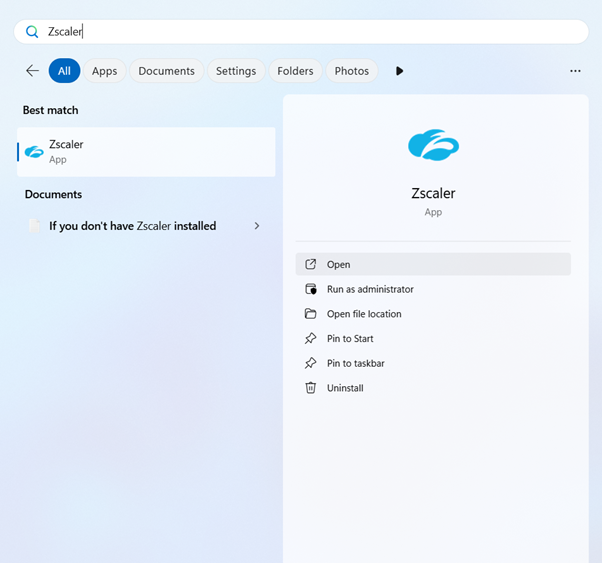
1. Press the 'Windows' key and type in 'Zscaler' to open the app.
If Zscaler doesn't appear. Restart laptop whilst connected to eduSTAR Wi-Fi.
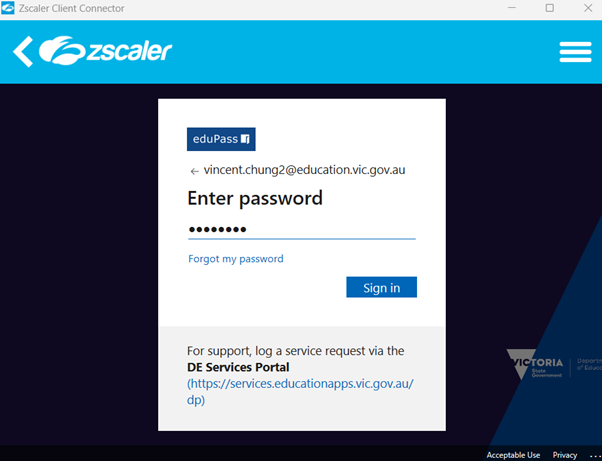
2. Click 'Login' and enter your @education.vic.gov.au credentials.
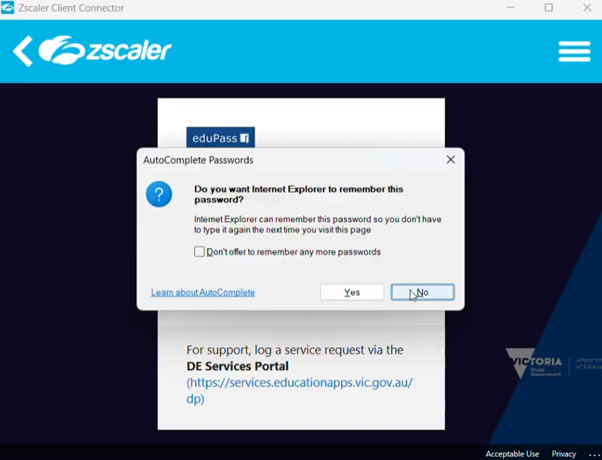
3. Click ‘No’.
4. Click ‘Don’t show this again’ and click ‘Yes’.
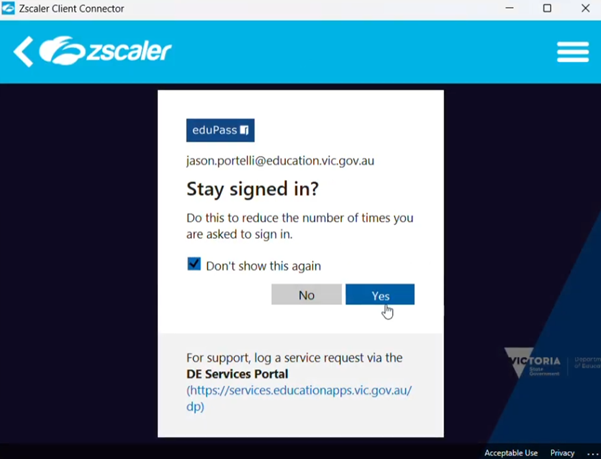
Now you’ve successfully enabled with Zscaler on your device.
Disabling Zscaler on private networks
We strongly suggest this if you do not want your internet to be filtered when you're off the school network such as home Wi-Fi.
5. Open Zscaler app (refer to step 1.)
6. On the ‘Internet Security’ and 'Digital Experience' tab. Click TURN OFF for both.
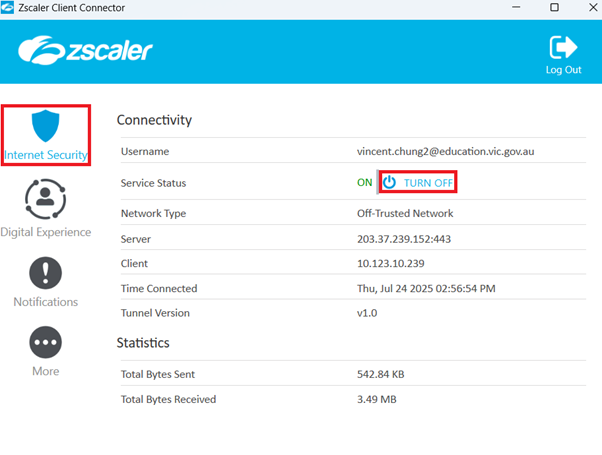
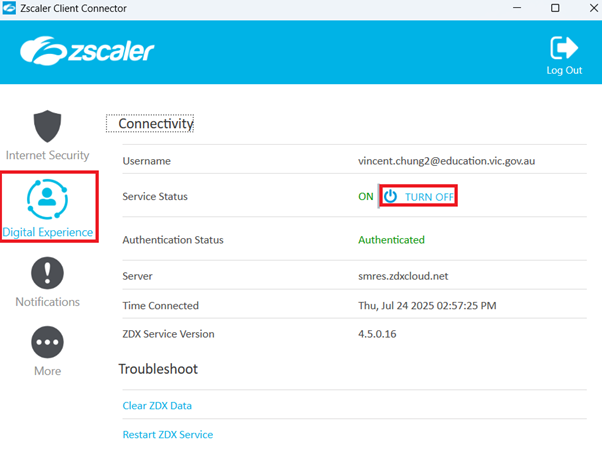
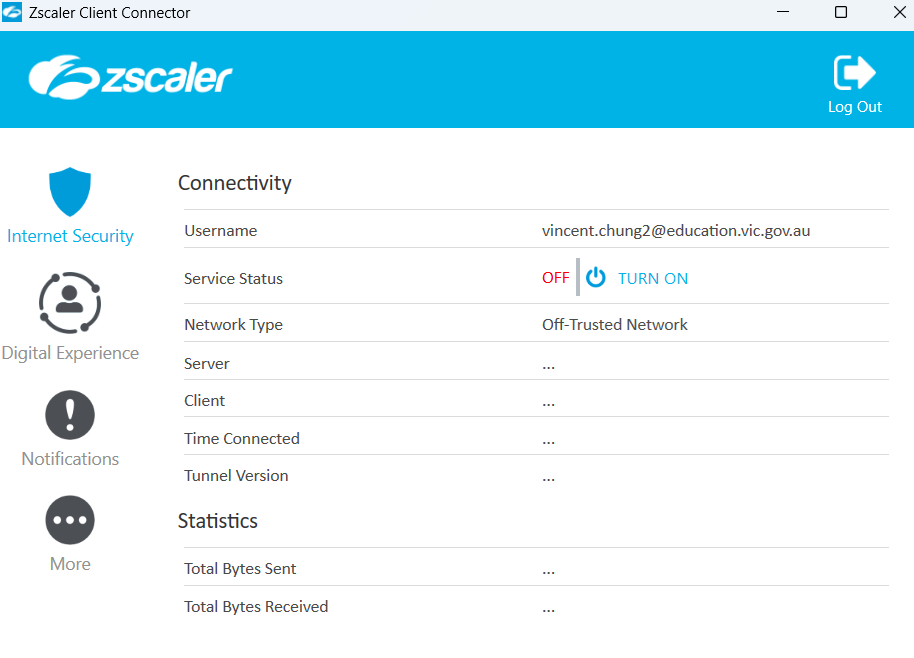
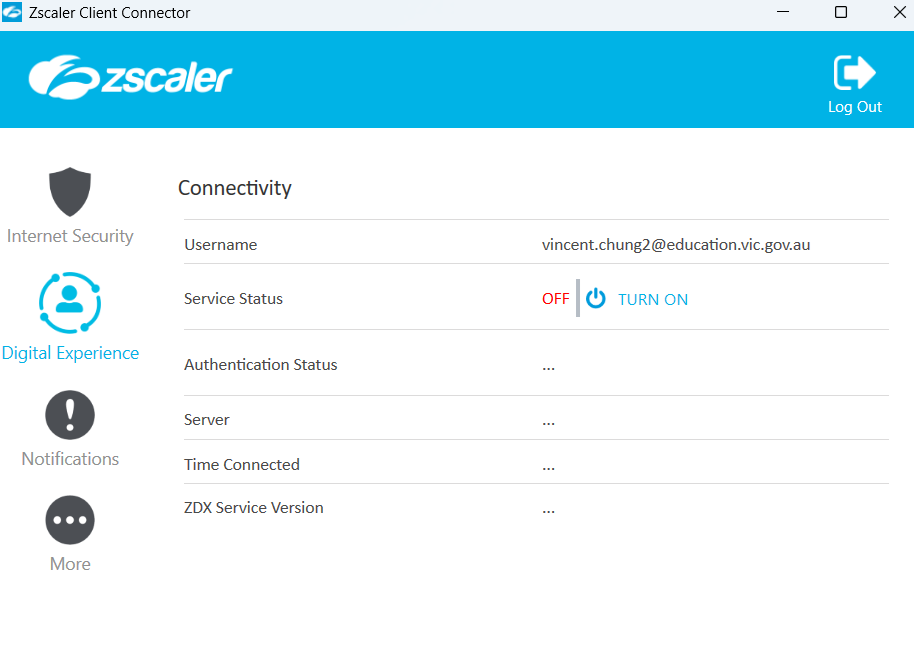
7. After disabling both status' in ‘Internet Security’ and 'Digital Experience' tabs.
It should look like this.
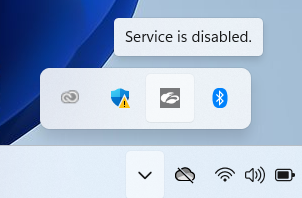
You can also check in the hidden icons tray at the bottom right corner of your screen.
If you're having any issues with anything at all. Please contact or visit the I.T. Department for assistance.